


Powerbox Core radio and set up thread.
 11-08-2024 | 01:21 PM
#2001


My Feedback: (11)

Well the only difference between 4.1 and 4.2 is that .2 retains some internal trouble shooting info for PB techs to use.
So if it takes the 4.1 update via either core or terminal I wouldn't stress too much but you can always open a thread on the powerbox forum so Richard can address it directly.
So if it takes the 4.1 update via either core or terminal I wouldn't stress too much but you can always open a thread on the powerbox forum so Richard can address it directly.
 11-08-2024 | 11:56 PM
#2002

Just try reflashing v4.1 (or even an earlier firmware version) over the installed v4.1 to see if the process works.
If the process works and flashes v4.1 over itself then there is nothing wrong with the Rx.
V4.2 was not meant to be available to general users at this point in time as it was only for internal use by the PB team and only contains some status message updates for diagnostic use by PB.
If the process works and flashes v4.1 over itself then there is nothing wrong with the Rx.
V4.2 was not meant to be available to general users at this point in time as it was only for internal use by the PB team and only contains some status message updates for diagnostic use by PB.
11-12-2024 | 06:13 PM
#2003
Simple PB Setup
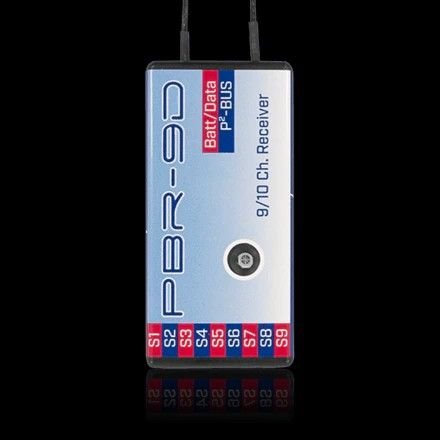
I'm into my 4th turbine airplane with Powerbox but converting to all PB with my gassers. For a simple setup in my smallest airplane I'm considering a single PBR-9D with a Sensor V3 and two flight batteries. Is it best to Y the two power leads from the Sensor V3 into the RX's Batt socket or insert the second power lead into an open servo socket? This is in a 70cc size airplane with digital HV servos.
11-12-2024 | 10:53 PM
#2004


The 9 does not have a dedicated power socket. My technique for many years is to connect one batt, output to ch 1 socket via a ylead, and the other to the 9 ch socket, ie other end of power rail. also via a y lead,. Used that on many Weatronic and now Powerbox receivers, it works, never a problem.
This was recommended to me many years ago by a real expert as it is an application of Kirchoff’s law and doubles the current handling of the power rail.
This was recommended to me many years ago by a real expert as it is an application of Kirchoff’s law and doubles the current handling of the power rail.
Last edited by David Gladwin; 11-13-2024 at 08:50 AM.
 12-16-2024 | 11:39 AM
#2007
I attempted to use it. I created a text file with a schedule of maneuvers on my PC, and then copied it to a USB stick. I then tried to use the file manager on my Core radio to copy the text file to my radio, but I kept getting a message telling me that the copy operation wasn't allowed. I then tried loading the text file into Anchorman directly from inside the Anchorman application, but that wasn't allowed either. I'm sure that the Anchorman application works, but until Powerbox fixes this file copying bug I won't be able to use it...
12-16-2024 | 12:29 PM
#2008

I attempted to use it. I created a text file with a schedule of maneuvers on my PC, and then copied it to a USB stick. I then tried to use the file manager on my Core radio to copy the text file to my radio, but I kept getting a message telling me that the copy operation wasn't allowed. I then tried loading the text file into Anchorman directly from inside the Anchorman application, but that wasn't allowed either. I'm sure that the Anchorman application works, but until Powerbox fixes this file copying bug I won't be able to use it...
the Anchroman PC editing works if you stick to the follow format. Example:
Test List.txt;
Figure M;0;
Looping;0;
Roll;0;
4 Point Roll;0;
Humpty Bump;0;
Test first Line is the file name. The following lines were made on a PC simple text editor. Please do not forget the separating signs like point and semikolon.
You can use the above example for a quick test. Drop these lines in a simple windows editor and save it with the file name "Test List.txt" on a USB stick. Open the Anchorman and import the file.
BR
Dirk
12-16-2024 | 12:42 PM
#2009
Hello Brenner,
the Anchroman PC editing works if you stick to the follow format. Example:
Test List.txt;
Figure M;0;
Looping;0;
Roll;0;
4 Point Roll;0;
Humpty Bump;0;
Test first Line is the file name. The following lines were made on a PC simple text editor. Please do not forget the separating signs like point and semikolon.
You can use the above example for a quick test. Drop these lines in a simple windows editor and save it with the file name "Test List.txt" on a USB stick. Open the Anchorman and import the file.
BR
Dirk
the Anchroman PC editing works if you stick to the follow format. Example:
Test List.txt;
Figure M;0;
Looping;0;
Roll;0;
4 Point Roll;0;
Humpty Bump;0;
Test first Line is the file name. The following lines were made on a PC simple text editor. Please do not forget the separating signs like point and semikolon.
You can use the above example for a quick test. Drop these lines in a simple windows editor and save it with the file name "Test List.txt" on a USB stick. Open the Anchorman and import the file.
BR
Dirk
12-16-2024 | 03:21 PM
#2010
Got it working as directed by Richard on the PB Forum. Create simple file in Anchorman, export to USB, copy to computer, open, edit and rename .txt file, import back to Anchorman by USB.
A tip for adding short pauses between elements within a maneuver: type multiple periods ...... Helps with the timing.
A tip for adding short pauses between elements within a maneuver: type multiple periods ...... Helps with the timing.
12-17-2024 | 03:10 AM
#2011
12-17-2024 | 09:27 AM
#2012
I can't do that with my Core. For some reason, it won't let me. I'm calling it a bug because being able to copy files from a USB stick to the Core is a basic function, and there are other features in the radio that depend on being able to do this. I have updated my Core to the latest version of the software, and if others can copy files and I can't, I assume that the problem is version-specific.
12-17-2024 | 09:48 AM
#2013
My Feedback: (11)
Not denying you may have an issue but it's definitely not a bug or it would affect all Core radios.
What exactly is happening, can you provide screen shots, or better a video? No offense please but it really sounds like a user misunderstanding, though I suppose anything is possible. But if its a one-off actual issue then you'd have to send it for service because they won't fix it with an update unless its a global issue.
What exactly is happening, can you provide screen shots, or better a video? No offense please but it really sounds like a user misunderstanding, though I suppose anything is possible. But if its a one-off actual issue then you'd have to send it for service because they won't fix it with an update unless its a global issue.
12-17-2024 | 10:01 AM
#2014
Not denying you may have an issue but it's definitely not a bug or it would affect all Core radios.
What exactly is happening, can you provide screen shots, or better a video? No offense please but it really sounds like a user misunderstanding, though I suppose anything is possible. But if it’s a one-off actual issue then you'd have to send it for service because they won't fix it with an update unless it’a global issue.
What exactly is happening, can you provide screen shots, or better a video? No offense please but it really sounds like a user misunderstanding, though I suppose anything is possible. But if it’s a one-off actual issue then you'd have to send it for service because they won't fix it with an update unless it’a global issue.
Also, why are you not considering that bugs can get introduced when software is updated?
12-17-2024 | 12:26 PM
#2015
My Feedback: (11)
LOL i was afraid you were going to take it that way, I'm just trying to help you out <sigh>
Bugs are code issues, you don't have a bug or my 2 radios and everyone else's would be doing the same thing. The switch assignment bug was introduced, reproducible, and fixed with the last update.
Not saying you don't have an issue, but you don't have a bug.
Bugs are code issues, you don't have a bug or my 2 radios and everyone else's would be doing the same thing. The switch assignment bug was introduced, reproducible, and fixed with the last update.
Not saying you don't have an issue, but you don't have a bug.
12-17-2024 | 03:19 PM
#2016
LOL i was afraid you were going to take it that way, I'm just trying to help you out <sigh>
Bugs are code issues, you don't have a bug or my 2 radios and everyone else's would be doing the same thing. The switch assignment bug was introduced, reproducible, and fixed with the last update.
Not saying you don't have an issue, but you don't have a bug.
Bugs are code issues, you don't have a bug or my 2 radios and everyone else's would be doing the same thing. The switch assignment bug was introduced, reproducible, and fixed with the last update.
Not saying you don't have an issue, but you don't have a bug.
I am just a little frustrated by this problem. The Anchorman feature is something that I have wanted to see ever since I first started using my Core, and it's frustrating to finally get it and still not be able to use it. When I stop for a moment to think about the problem, it makes good sense to conclude that the problem is not due to the Anchorman feature or the software version my Core is using.
It must be something that is specific to my setup and not to other setups. This means that it might be the file format I am using or the USB stick I am using. Maybe I am using a forbidden filename or a forbidden file extension. I have already tried to reformat my USB stick. I am using a PC with Windows 10 on it, and I doubt that Powerbox would limit themselves to only being compatible with MacBooks.
If there are any restrictions like this, I would hope that Powerbox would reach out to users, and educate them. Also, problems like this are exacerbated by the lack of documentation for the Anchorman feature. The documentation for the Core file manager isn't helping either...
The following users liked this post:
SkyKnight (12-20-2024)
12-20-2024 | 05:53 AM
#2021
My Feedback: (360)
Does anyone recall who made some small pieces that fit over the protrusions on the back of the Core to raise it up slightly while sitting it on the ground ? I seem to remember that someone had 3D printed them.
I still find myself flipping the retract switch on back left corner most times when I lay it down. If it were just a tad bit higher off the ground, I think it would be better.
-Mike Oberst
I still find myself flipping the retract switch on back left corner most times when I lay it down. If it were just a tad bit higher off the ground, I think it would be better.
-Mike Oberst
The following 2 users liked this post by IFLYBVM2:
SkyKnight (12-20-2024),
Springbok Flyer (12-20-2024)
 12-22-2024 | 08:54 PM
#2023
i was having trouble with resetting my password on here, so have not been able to login successfully until now..
Anyway in regards to the Anchorman feature that Brenner is having trouble with.... I have not played with this feature too much but for me it works fine and was able to export a file, modify it and then load it back in without issue.
First up is that you should be using the 'Load List' and 'Export List' functions within the Anchorman menu to import/export (ie copy across) the text file to and from either the internal SD card memory or a USB stick. Do not simply try and drag/copy and drop from the USB stick to the relevant folder.
The file is just a very basic text file so do not open it using MS Word etc, just use a basic text file editor such as Wordpad or Notepad if working in a Windows environment.
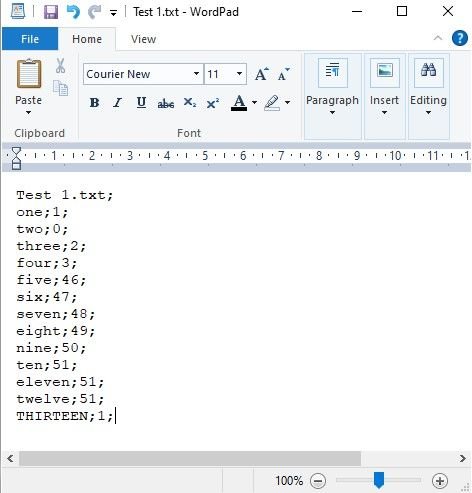
At the very bottom of this post is a screen shot of a before and after of my modified text file - I originally made up a list of 12 entries then exported the file (Don't forget to press save first near the bottom of the list) and added a 13th entry on my PC. I then loaded the modified text file back into the Anchorman menu using the 'Load List' feature.
Works 100% ok...


Remember to hit Save so your list is saved to the actual text file you have selected in the top LH corner of the Anchorman menu feature. This file resides on the SD card inside the Tx - obviously you can store mutiple files.
There is a small bug at the moment which PB are aware of in that if you create a file here, you can not delete at this stage. You can modify any existing file but not delete it - should be fixed in the next firmware release.
Once your list is saved to the internal SD card you can simply select it in the Anchorman menu and then 'Export' it to you USB stick just by pressing Export List... No different to exporting a typical model.
When wanting to load a modified Anchorman list... just use the 'Import List' feature and navigate to your USB stick... You should be able to see any Anchorman text files that are on your USB stick.
Below is the file I edited and added the 13th list entry... Test 1.txt
Select the file then hit the green tick symbol and it will import this file to the Anchorman list of files stored in the Tx.

Sample of my before and after (edited) Test 1.txt files.
Format is pretty simple - Text entry then a number which correlates to the voice selected for announcemet, note the semicolon delimiters required.

Anyway in regards to the Anchorman feature that Brenner is having trouble with.... I have not played with this feature too much but for me it works fine and was able to export a file, modify it and then load it back in without issue.
First up is that you should be using the 'Load List' and 'Export List' functions within the Anchorman menu to import/export (ie copy across) the text file to and from either the internal SD card memory or a USB stick. Do not simply try and drag/copy and drop from the USB stick to the relevant folder.
The file is just a very basic text file so do not open it using MS Word etc, just use a basic text file editor such as Wordpad or Notepad if working in a Windows environment.
At the very bottom of this post is a screen shot of a before and after of my modified text file - I originally made up a list of 12 entries then exported the file (Don't forget to press save first near the bottom of the list) and added a 13th entry on my PC. I then loaded the modified text file back into the Anchorman menu using the 'Load List' feature.
Works 100% ok...
Remember to hit Save so your list is saved to the actual text file you have selected in the top LH corner of the Anchorman menu feature. This file resides on the SD card inside the Tx - obviously you can store mutiple files.
There is a small bug at the moment which PB are aware of in that if you create a file here, you can not delete at this stage. You can modify any existing file but not delete it - should be fixed in the next firmware release.
Once your list is saved to the internal SD card you can simply select it in the Anchorman menu and then 'Export' it to you USB stick just by pressing Export List... No different to exporting a typical model.
When wanting to load a modified Anchorman list... just use the 'Import List' feature and navigate to your USB stick... You should be able to see any Anchorman text files that are on your USB stick.
Below is the file I edited and added the 13th list entry... Test 1.txt
Select the file then hit the green tick symbol and it will import this file to the Anchorman list of files stored in the Tx.
Sample of my before and after (edited) Test 1.txt files.
Format is pretty simple - Text entry then a number which correlates to the voice selected for announcemet, note the semicolon delimiters required.
Last edited by CostasV; 12-23-2024 at 12:17 AM.
The following users liked this post:
Jannica (12-22-2024)
12-23-2024 | 09:02 PM
#2024
i was having trouble with resetting my password on here, so have not been able to login successfully until now..
Anyway in regards to the Anchorman feature that Brenner is having trouble with.... I have not played with this feature too much but for me it works fine and was able to export a file, modify it and then load it back in without issue.
First up is that you should be using the 'Load List' and 'Export List' functions within the Anchorman menu to import/export (ie copy across) the text file to and from either the internal SD card memory or a USB stick. Do not simply try and drag/copy and drop from the USB stick to the relevant folder.
The file is just a very basic text file so do not open it using MS Word etc, just use a basic text file editor such as Wordpad or Notepad if working in a Windows environment.
At the very bottom of this post is a screen shot of a before and after of my modified text file - I originally made up a list of 12 entries then exported the file (Don't forget to press save first near the bottom of the list) and added a 13th entry on my PC. I then loaded the modified text file back into the Anchorman menu using the 'Load List' feature.
Works 100% ok...
Remember to hit Save so your list is saved to the actual text file you have selected in the top LH corner of the Anchorman menu feature. This file resides on the SD card inside the Tx - obviously you can store mutiple files.
There is a small bug at the moment which PB are aware of in that if you create a file here, you can not delete at this stage. You can modify any existing file but not delete it - should be fixed in the next firmware release.
Once your list is saved to the internal SD card you can simply select it in the Anchorman menu and then 'Export' it to you USB stick just by pressing Export List... No different to exporting a typical model.
When wanting to load a modified Anchorman list... just use the 'Import List' feature and navigate to your USB stick... You should be able to see any Anchorman text files that are on your USB stick.
Below is the file I edited and added the 13th list entry... Test 1.txt
Select the file then hit the green tick symbol and it will import this file to the Anchorman list of files stored in the Tx.
Sample of my before and after (edited) Test 1.txt files.
Format is pretty simple - Text entry then a number which correlates to the voice selected for announcemet, note the semicolon delimiters required.
Anyway in regards to the Anchorman feature that Brenner is having trouble with.... I have not played with this feature too much but for me it works fine and was able to export a file, modify it and then load it back in without issue.
First up is that you should be using the 'Load List' and 'Export List' functions within the Anchorman menu to import/export (ie copy across) the text file to and from either the internal SD card memory or a USB stick. Do not simply try and drag/copy and drop from the USB stick to the relevant folder.
The file is just a very basic text file so do not open it using MS Word etc, just use a basic text file editor such as Wordpad or Notepad if working in a Windows environment.
At the very bottom of this post is a screen shot of a before and after of my modified text file - I originally made up a list of 12 entries then exported the file (Don't forget to press save first near the bottom of the list) and added a 13th entry on my PC. I then loaded the modified text file back into the Anchorman menu using the 'Load List' feature.
Works 100% ok...
Remember to hit Save so your list is saved to the actual text file you have selected in the top LH corner of the Anchorman menu feature. This file resides on the SD card inside the Tx - obviously you can store mutiple files.
There is a small bug at the moment which PB are aware of in that if you create a file here, you can not delete at this stage. You can modify any existing file but not delete it - should be fixed in the next firmware release.
Once your list is saved to the internal SD card you can simply select it in the Anchorman menu and then 'Export' it to you USB stick just by pressing Export List... No different to exporting a typical model.
When wanting to load a modified Anchorman list... just use the 'Import List' feature and navigate to your USB stick... You should be able to see any Anchorman text files that are on your USB stick.
Below is the file I edited and added the 13th list entry... Test 1.txt
Select the file then hit the green tick symbol and it will import this file to the Anchorman list of files stored in the Tx.
Sample of my before and after (edited) Test 1.txt files.
Format is pretty simple - Text entry then a number which correlates to the voice selected for announcemet, note the semicolon delimiters required.

